Two-factor authentication
Two-factor authentication (2FA) asks for a six-digit code from an authenticator app after your password. Anyone who learns your password still cannot sign in without your phone.
Short answer
Open Account → Security and choose the two-factor button. Scan the QR code with an authenticator app, type the code it shows, and save the 8 recovery codes somewhere safe. From then on Glimana asks for a code at sign-in.
Turn it on
You need a verified email address first; if you have not confirmed it yet, the setup page asks you to do that.
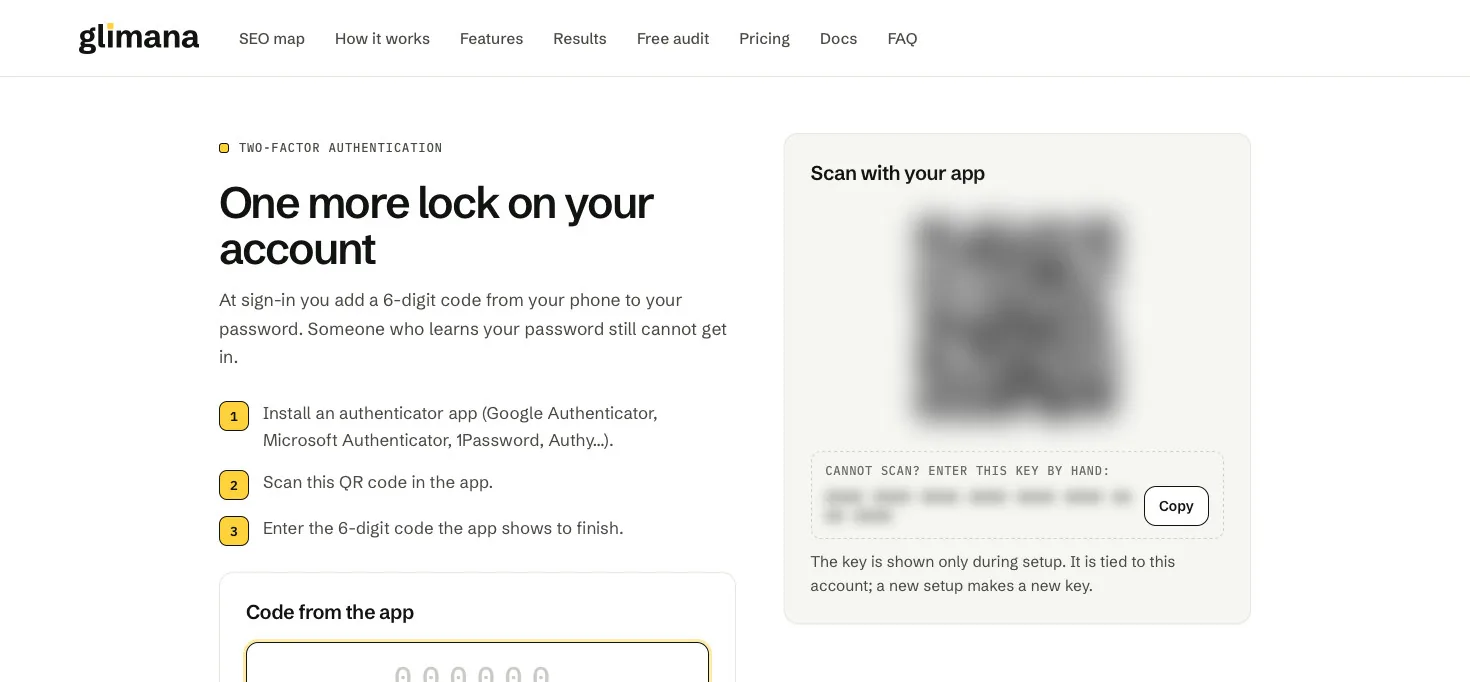
- Open the avatar menu → Account → Security and choose the two-factor button. It opens the setup page (
/account/2fa). - Scan the QR code with an authenticator app (any app that shows six-digit time-based codes works).
- Enter the six-digit code the app shows to confirm.
- Save your recovery codes (see below) before you leave the page.
When 2FA is switched on, Glimana sends an email to the account owner with a link to undo it (see "This was not me").
Required for administrator accounts
Glimana staff accounts with administrator access cannot use the panel without 2FA; they are sent to the setup page until it is on. For everyone else it is optional and recommended.
Signing in with a code
After your email and password, Glimana shows the code screen (/2fa). Open your authenticator app and type the current code. Codes change every 30 seconds; if one is rejected, wait for the next.
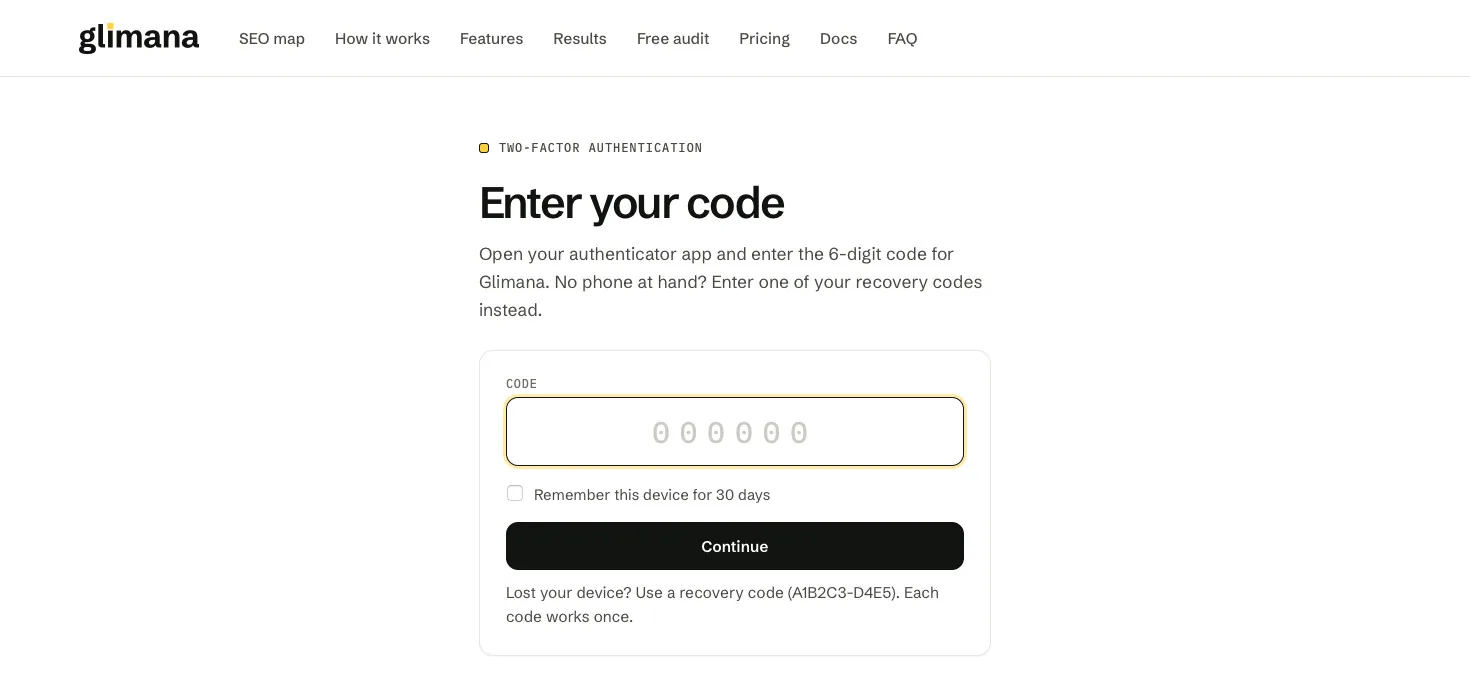
After too many wrong codes the screen asks you to try again in an hour. This protects the account if someone has your password.
Recovery codes
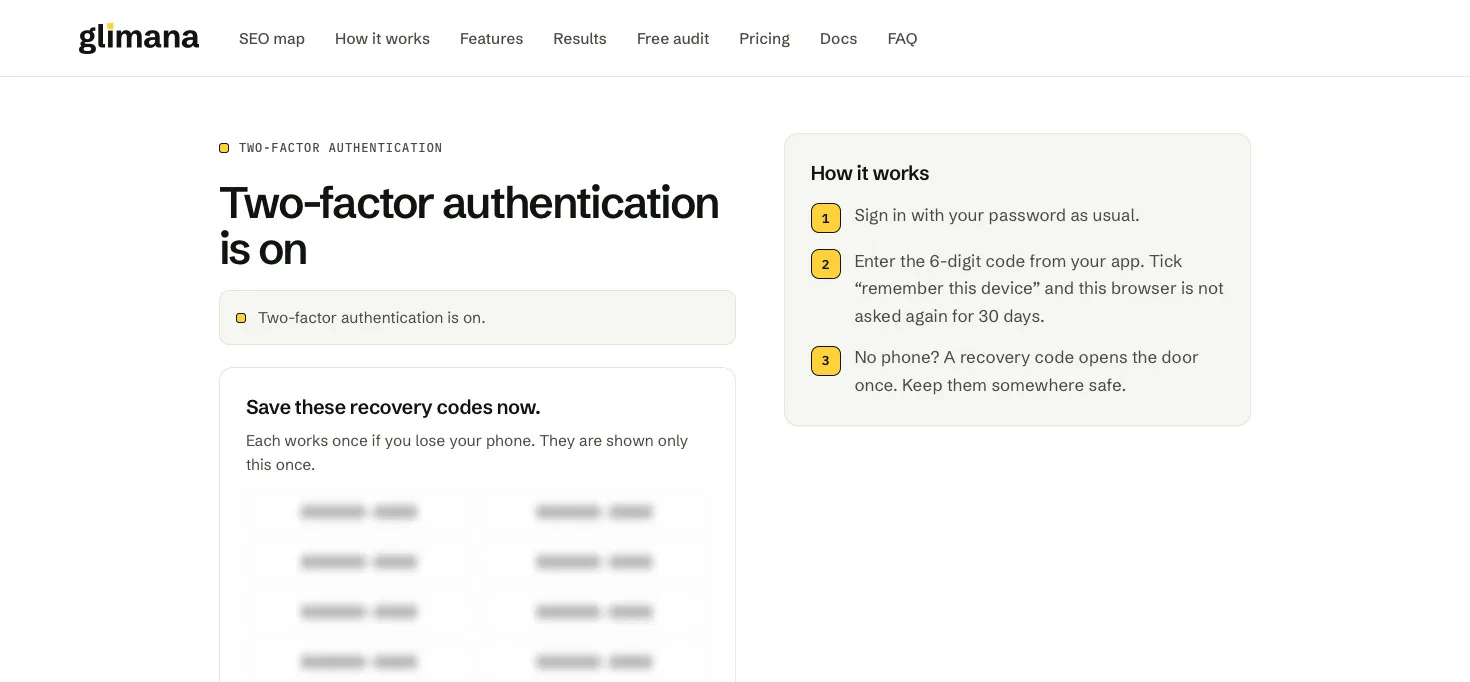
When you turn 2FA on you get 8 recovery codes in the form A1B2C3-D4E5. Each one works once, in place of an app code, for example when your phone is lost.
- Store them outside Glimana: a password manager or a printed copy.
- When you have used some, generate a new set on the setup page. A new set replaces the old one; the old codes stop working.
Remember this device
On the code screen you can tick remember this device. Glimana then skips the code on that browser for 30 days. Do not tick it on a shared or public computer.
"This was not me" — undo link
The email sent when 2FA is switched on contains a "This was not me — undo" link. It is signed and valid for 24 hours.
The link does not change anything by itself: it opens a confirmation page. Turn it off and sign out everywhere switches 2FA off and ends every session on the account, so whoever turned it on is signed out too. Then sign in, change your password and set 2FA up again on your own phone.
Turning it off
Two-factor authentication is switched off on the same setup page. Turning it off starts the 72-hour pause described below.
Support cannot change it for you
When a Glimana support team member opens your workspace to help you, they cannot turn 2FA on or off or generate new recovery codes. Security settings change only from your own session.
Why money actions pause for 72 hours
Some changes are what an attacker would do right after taking over an account. After any of them, actions that move money are paused for 72 hours:
- turning 2FA off,
- changing the password,
- resetting a forgotten password,
- changing the account email.
Turning 2FA on for the first time does not start the pause.
Money actions are part of Glimana Market, which is not open yet. Until it opens, this pause has no visible effect on your account.