Connections
Connections are account-wide: one Google sign-in can feed every site in the workspace. Open them from the avatar menu → Connections, or from the summary strip at the top of any site's settings.
Google: Search Console and GA4
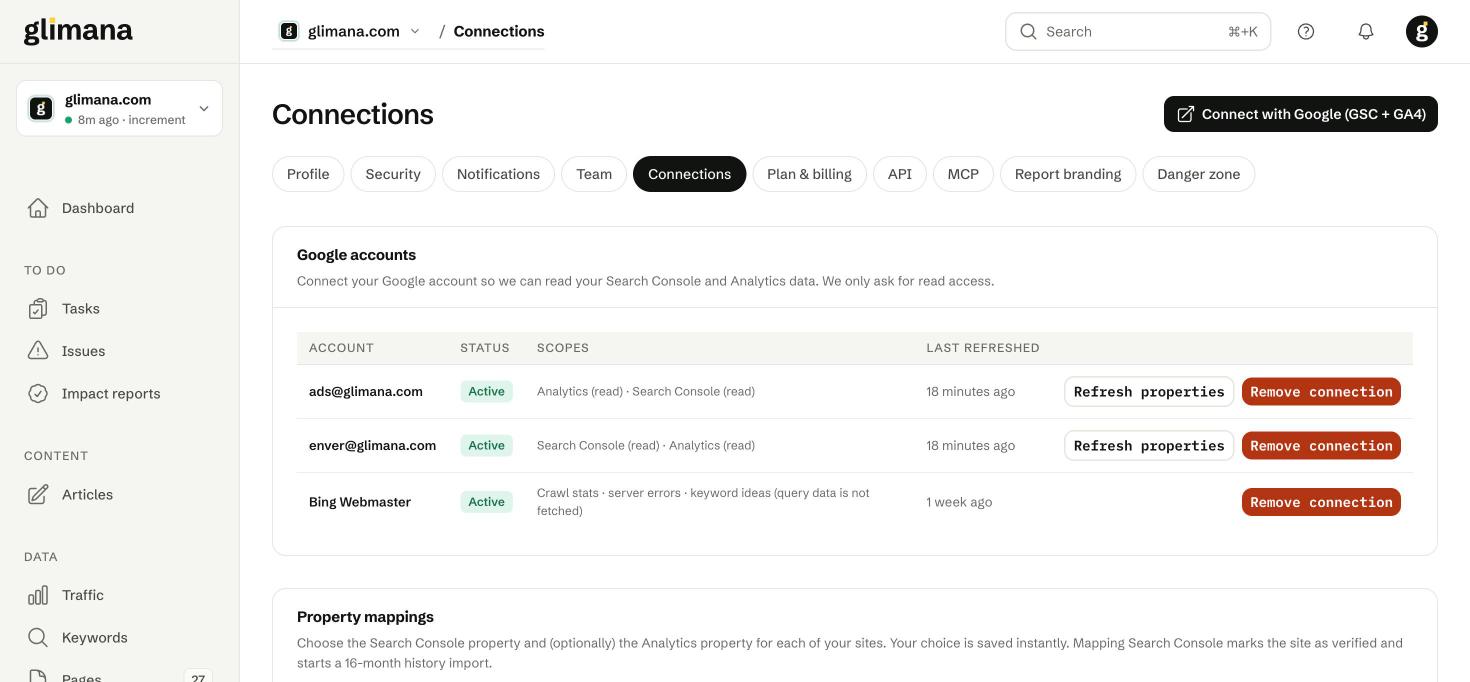
- Click Connect with Google (GSC + GA4) and sign in with the Google account that owns (or has been granted) the Search Console property. Glimana asks only for read scopes on Search Console and Analytics; it cannot change anything in your Google account.
- Back in Glimana, scroll to Property mappings. For each site pick the Search Console property. A
sc-domain:property is preferred because it covers every protocol and subdomain; a URL-prefix property (https://www.example.com/) works too and is suggested when it matches the site root. - Optionally pick the GA4 property. This unlocks the Traffic screen and the "search share" figures. Nothing else depends on it.
- The mapping is saved as you choose. Mapping Search Console marks the site as verified and starts a 16-month history import, which usually finishes within an hour.

You can connect several Google accounts; properties from all of them appear in the dropdowns. Refresh properties re-reads the list after you added a property in Google. Remove connection keeps the data already imported but stops new fetches for sites mapped through that account.
Data flow and the Google delay
The Data flow table lists, per site, the newest Search Console day we have, how far behind Google is, and when the last successful fetch ran. Search Console data is published two to three days late by Google; Glimana does not treat that as a fault. The only thing counted as a failure is the fetch itself not running: the job runs daily, and if it misses two runs an alert appears at the top of the panel and in the bell.
Why a new site shows "no data"
Search Console returns nothing for days with zero impressions. A brand-new site can show "latest data: 6 days ago" simply because it had no impressions since; that is not a fetch problem.
Bing Webmaster
Connect Bing Webmaster Tools with its own sign-in. Glimana uses it for two things only: crawl statistics (Bing crawls your server every day and reports the status codes it saw — Google does not provide this through its API) and keyword ideas (topics your site never appears for, listed at the bottom of the Keywords screen). Query and page data from Bing are deliberately not imported; in our tests they produced no useful signal next to Search Console.
The fetch runs daily at 09:00; keyword ideas refresh weekly. Bing's statistics can lag a few days behind — the Crawls page says so when it happens.
IndexNow
IndexNow tells Bing, Yandex, Naver, Seznam and Yep about changed pages within seconds. No account is needed; the only requirement is a key file on your site.
- In the IndexNow section click Generate key next to the site.
- Create a text file at the address shown (
https://www.example.com/<key>.txt) whose only content is the key itself. - Click Verify. The status changes to verified.
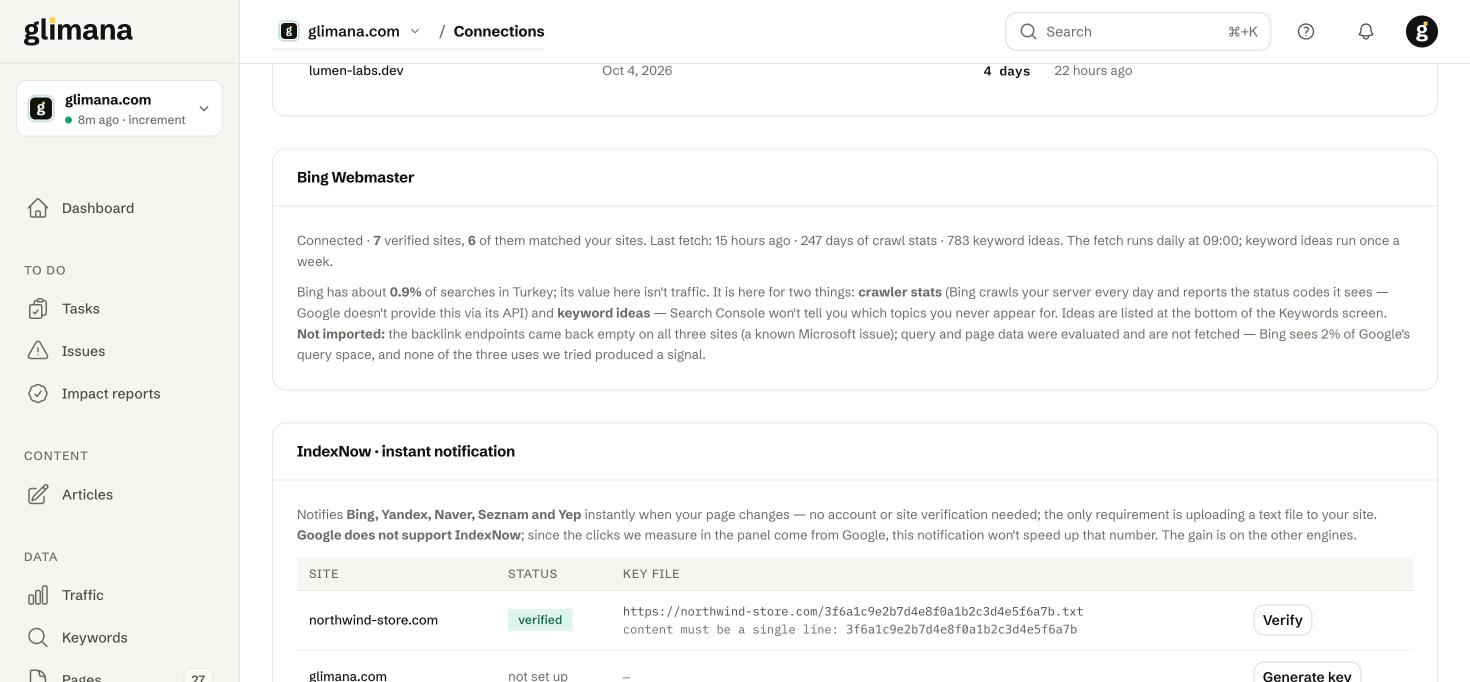
After each crawl Glimana submits only pages whose main content changed (a counter or date changing on every page does not count), at most 2,000 URLs per site per day. The Recent submissions table shows each batch with its site, URL count and result. Google does not support IndexNow, so this does not speed up the clicks you see in the panel — the gain is on the other engines.
Publishing connections
Publishing connections let the article writer send drafts to your site. They are per site: open Site settings → Publishing connections.

- Download the glimana Publisher plugin from the page (11 KB; the SHA-256 is printed next to the link so you can verify the file) and install it under Plugins → Add New → Upload Plugin.
- In Glimana add a WordPress connection and copy the code shown once.
- In WordPress open Settings → glimana Publisher, paste the code, choose the author drafts should belong to, and decide whether Glimana may publish immediately or only create drafts (drafts is the default and the recommendation).
- Back in Glimana click Test. The connection shows Connected, the plugin version and the categories it found.
- Give your developer the Publishing API document linked on the page. It describes two endpoints your site must expose (
/glimana/v1/pingand/glimana/v1/publish) and how to verify the signature. - Add a Custom API connection. Glimana shows a key ID and a secret once; hand them to the developer through a secure channel.
- When the endpoints are live click Test.
Security. Every request is signed with HMAC-SHA256 using a 256-bit secret; requests older than five minutes or replayed are rejected; the secret itself is never sent over the network. Glimana only talks to https:// addresses and never to private network ranges. The plugin decides authorship and permissions; Glimana cannot upload files or change settings on your site.
Removing connections
Removing a Google or Bing connection stops new fetches immediately and keeps the historical data. Removing a publishing connection stops "Send to site" for that site; drafts already created stay in Glimana.