Tasks
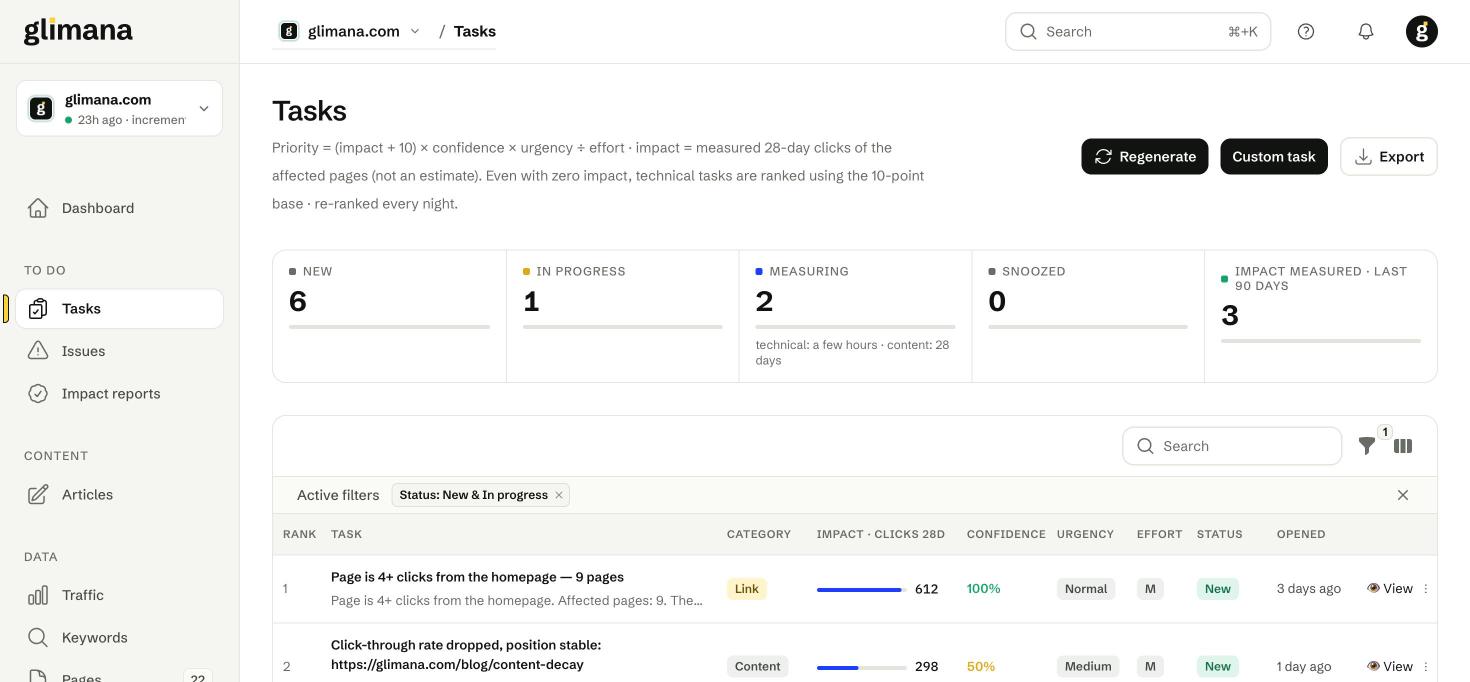
Tasks are the work. Issues (from the crawl), decay and cannibalization findings (from Search Console), article opportunities and your own custom items all become tasks, ranked every night so the top of the list is always the best use of the next hour.
How a task is ranked
The priority of every task is (impact + 10) × confidence × urgency ÷ effort.
- Impact is the measured organic clicks, in the last 28 days, of the pages the task touches. It is a Search Console number, never an estimate. A task on pages nobody visits has impact 0; the +10 base keeps it on the list with a low rank instead of hiding it.
- Confidence is how sure we are that doing the task helps: 100% for a crawl-verified technical issue, 90% for a site-health rule, 70% for a CTR opportunity, 60% for decay, 50% for cannibalization or a custom task.
- Urgency is Normal for most tasks, Medium for content decay that is still falling, and High for site-health items such as a server returning errors to Googlebot.
- Effort is S (1), M (2.5) or L (6), set per rule.
Site-level task weights (Site settings → Crawl) multiply the result for the Technical, Content and Traffic families.
Statuses
| Status | Meaning |
|---|---|
| New | Created, not started. |
| In progress | You clicked Start or edited it. Nothing else changes. |
| Measuring | You marked it done. Technical tasks wait for the verification crawl (hours); content tasks wait 31 days for the Search Console window to close. |
| Snoozed | Hidden for the period you chose (7, 30 or 90 days). It returns with its rank recomputed. |
| Impact measured | The result is in: see Impact reports. Counted for the last 90 days in the top row. |
| Closed on its own | The issue disappeared in a later crawl before you marked anything. The task is closed, not measured, and listed under "Self-resolved" on Impact reports. |
The default filter shows New & In progress. Clear it with the × on the filter chip to see everything.
The table
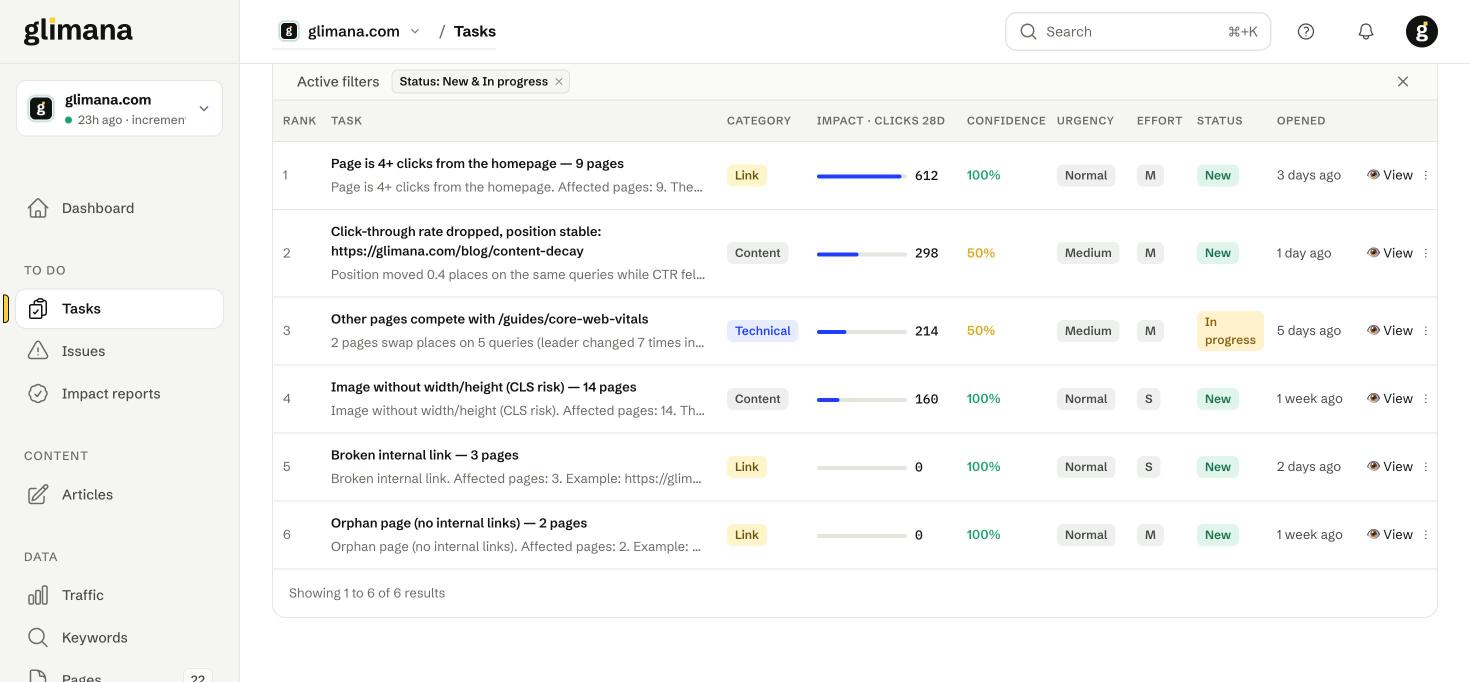
Rank is tonight's priority order. Gaps in the numbers mean tasks that are snoozed or hidden by the filter. Category is Technical, Content, Link or Traffic. Impact · clicks 28d shows the measured clicks with a bar relative to the site's busiest task. The description under each title is the first lines of the task's reason; click View for the full detail.
Buttons at the top: Regenerate re-runs the rules and ranking now instead of waiting for tonight (useful after a big fix). Custom task adds your own item with a title, affected URL and effort; it gets confidence 50% and is measured like a content task. Export downloads the current view as CSV.
Reading a task

Every task has the same anatomy:
- Reason — what was found, with the numbers that triggered it and example URLs. For decay tasks this includes the peak, the current 28 days, position and CTR change, and the site-wide trend so you can tell a page problem from a site problem.
- How to do it — the fix, in steps. For rules it comes from the issue guide; the "Why it matters" link opens the full guide.
- Source — the Google documentation (or other primary source) the rule is based on.
- Verification — Automatic via re-crawl + audit for technical tasks; 28-day before/after Search Console comparison, measured on day 31 for content tasks.
- Done / Closed / Outcome / Impact report — filled in as the task moves through its life.
Marking a task done
Mark as done is a statement that the fix is live. For technical tasks the affected pages are queued for a verification crawl within a few hours; if the issue is still there the task returns to New with a note, and if it is gone the task is closed and listed under "Resolved technical issues" on Impact reports. For content tasks the date is recorded, and on day 31 the measurement compares the 28 days before with the 28 days after against a control group — see Impact reports for the method.
Close ends a task without measuring it (wrong, not applicable, won't do). Closed tasks for the same rule and page are not re-opened for 90 days.
Decay tasks and the writer
A content-decay task on an article page shows Refresh with the writer — it opens the article writer with the page's current text, the queries it is losing and the research step switched on, and the result is a draft that replaces the page at the same URL. Tool and listing pages do not get this button, because an article would replace the tool; for those, update the title, description and the text around the tool by hand.
Cannibalization and decay — when they fire
Cannibalization: two or more of your pages swap places for the same queries. A task is created when the queries have at least 300 impressions in 90 days, the pages traded the lead at least 3 times, they sit within 5 positions of each other and the loser gets at least 10% of the clicks. Pages that are legitimately different intents (e.g. amount variants of a calculator) are protected and not reported.
Decay: a page's 28-day clicks fell by at least 35% from a peak of at least 100 clicks, the peak window ended at least 28 days before the current window (so the tail of a spike is not called decay), and the drop is at least 15 points worse than the site as a whole. The diagnosis line then says which of these it looks like: position loss, lost queries, impression loss, or CTR drop with stable position (a SERP layout change — fix the title and snippet, not the content).